 Ruben Buijs
Looking for a RICE template for Google Sheets? Copy this free scoring spreadsheet and use it right away with your own feature backlog.
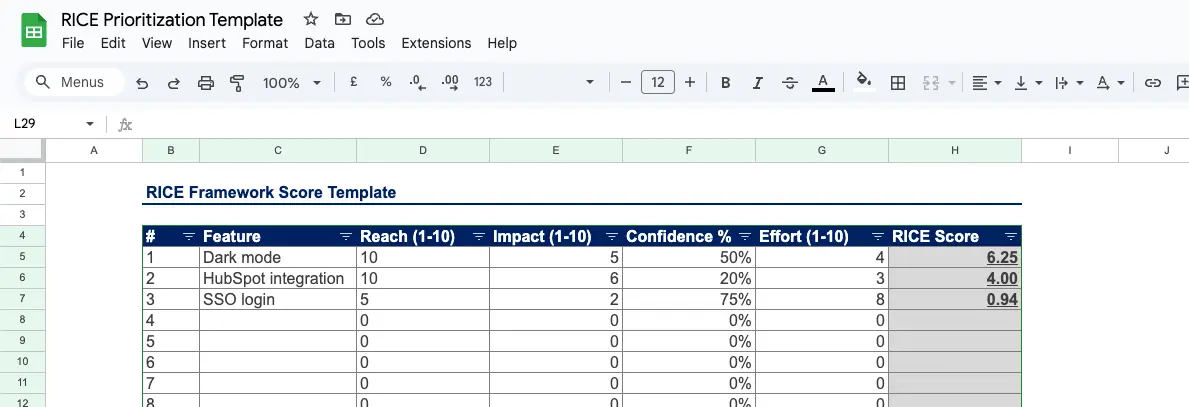
👉 Open the RICE Google Sheets template
Prefer instant results without opening a sheet? Try the interactive RICE Calculator. Prefer Excel? Grab the RICE template for Excel.
What is RICE Prioritization?
RICE is a prioritization framework that stands for Reach, Impact, Confidence, and Effort. Teams use it to score and rank product features so the highest value work rises to the top of the backlog. Each factor is scored independently, and the final RICE score is calculated as (Reach × Impact × Confidence) / Effort.
For a more detailed explanation, check out: Understanding RICE Prioritization
About the RICE Google Sheets Template
Our Google Sheets RICE prioritization template is designed to be:
- Easy to Use: Input your estimates, and the template calculates the RICE score automatically.
- Collaborative: Work in real time with your team members.
- Accessible Anywhere: Access your prioritization data from any device with internet access.
Prefer a different format? Excel version | PowerPoint version | All RICE templates
How to Use the RICE Prioritization Google Sheets Template
- Click on the link above to access the template.
- Make a copy of the template to your own Google Drive by selecting "File" > "Make a copy."
- List your initiatives or features in the designated column.
- Input values for Reach, Impact, Confidence, and Effort for each item.
- The template will automatically calculate the RICE score and rank your initiatives.
- Share the sheet with your team to collaborate and refine your prioritization.
Need a quick score without opening the spreadsheet? Use the online RICE Calculator for instant results.
Why Google Sheets Is Great for RICE Scoring
Google Sheets offers several advantages over desktop spreadsheets when it comes to collaborative prioritization.
Real Time Editing
Every team member can edit the same sheet simultaneously. Changes appear instantly, so there is no need to email files back and forth or worry about conflicting versions. When two people edit different rows at the same time, both updates are saved without overwriting each other.
Comment Threads on Cells
Right click any cell and select Comment to start a discussion. This is especially useful when a product manager wants to explain why a feature received a particular Impact score. Teammates can reply in the thread, and once consensus is reached, the comment can be resolved.
Sharing Permissions
Google Sheets gives you fine grained control over who can do what. You can set permissions at three levels:
- Viewer: Can see scores but not modify anything. Ideal for stakeholders who need visibility.
- Commenter: Can add comments and questions without changing data. Great for designers and customer facing teams.
- Editor: Full access to input and adjust scores. Reserved for PMs and team leads.
Version History for Auditing
Every edit is logged in the version history (File > Version history > See version history). If someone accidentally overwrites a score, you can restore an earlier snapshot. This audit trail is also valuable during retrospectives when you want to understand how priorities shifted over a quarter.
Advanced Google Sheets Features for RICE
A basic template works for small teams, and a few built-in Google Sheets features make it easier to maintain.
Conditional Formatting for Score Ranges
Apply color scales so high RICE scores stand out visually. Select the RICE Score column, go to Format > Conditional formatting, and create rules like:
- Green for scores above 10
- Yellow for scores between 5 and 10
- Red for scores below 5
This lets anyone scanning the sheet instantly spot top priority features without reading every number.
Data Validation Dropdowns
Prevent inconsistent entries by adding dropdown menus. Select the Impact column, then go to Data > Data validation and set a list of allowed values (for example, 0.5, 1, 2, 3). Do the same for Confidence with values like 50%, 80%, and 100%. Dropdowns keep scoring consistent across team members and reduce the chance of typos skewing results.
FILTER and SORT Formulas for Auto Ranking
Instead of manually sorting rows, add a formula that always shows features in rank order. For example, use =SORT(A2:F100, 6, FALSE) to sort by the RICE Score column in descending order. You can also use =FILTER(A2:F100, F2:F100 > 5) to display only features that meet a minimum threshold. These formulas update automatically whenever scores change, so the ranked list is always current.
How to Run a Team Prioritization Session
A shared Google Sheet works best when paired with a structured process. Here is a workflow that keeps sessions focused and fair.
Step 1: Prepare the Sheet
Before the meeting, list all candidate features in the first column. Add a brief description for each so everyone understands the scope. Share the sheet with all participants and set permissions to Editor.
Step 2: Score Independently
Give the team 15 to 20 minutes to fill in Reach, Impact, Confidence, and Effort for each feature. Each person should score based on their own understanding without discussing with others first. This avoids groupthink and anchoring bias.
Step 3: Review Together
Once scoring is complete, sort by RICE Score and walk through the top 10 features as a group. Discuss any items where individual scores differ significantly. Use the comment threads to capture the reasoning behind adjustments.
Step 4: Finalize and Archive
After the session, lock the sheet (Data > Protect sheets and ranges) to prevent accidental edits. Name the version in version history (e.g., "Q2 2026 Prioritization Final") so you can reference it later.
For a deeper dive into how RICE scoring works in practice, read our complete RICE prioritization guide.
Integration Tips
Collect Feature Requests with Google Forms
Create a Google Form where customers or internal team members can submit feature requests. Link the form responses to your RICE sheet so new requests appear automatically in a dedicated tab. From there, move promising items into the scoring sheet during your next prioritization session.
Export to CSV for Importing into ProductLift
If you want to move from spreadsheets to a dedicated prioritization tool, export your Google Sheet as a CSV file (File > Download > Comma Separated Values). You can then import the data into ProductLift to continue tracking priorities with built in voting, roadmap views, and team collaboration.
Google Sheets vs Excel for RICE Scoring
Both tools can handle a RICE template, but they serve different needs.
| Feature | Google Sheets | Excel |
|---|---|---|
| Real time collaboration | Built in, works instantly | Requires OneDrive or SharePoint setup |
| Offline access | Limited (requires Chrome extension) | Full offline support |
| Advanced formulas | Covers most use cases | Better suited to complex modeling |
| Sharing | Simple link sharing with permission levels | Requires file attachment or cloud setup |
| Version history | Automatic, granular | Manual save points or AutoSave via OneDrive |
| Price | Free | Requires Microsoft 365 subscription |
Choose Google Sheets when your team already uses Google Workspace, when you need quick sharing with external stakeholders, or when budget is a concern.
Choose Excel when you need advanced data analysis features, when most of your team works offline, or when your organization is standardized on Microsoft 365. We also have a dedicated RICE template for Excel.
Looking for a Long Term Solution?
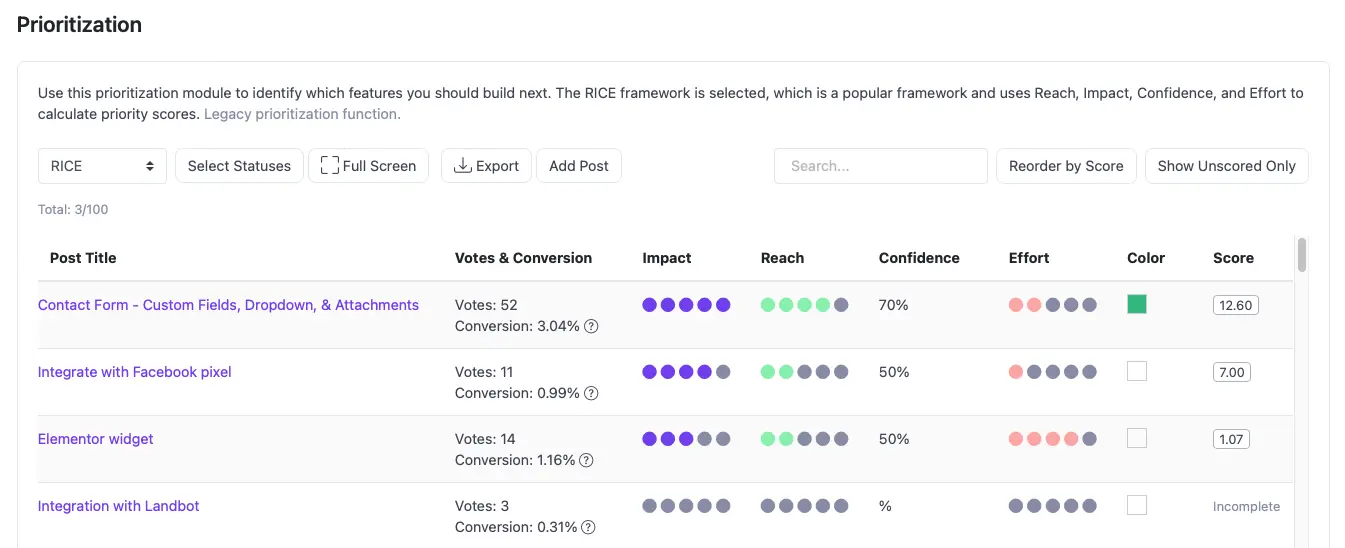
Google Sheets works well for a shared scoring session. It becomes harder to maintain when requests, customer evidence, and roadmap status live in different places. ProductLift's RICE prioritization feature keeps those parts together:
- Live Requests: Keep RICE fields attached to the original feature request
- Customer Evidence: Review votes, comments, segments, MRR, and LTV while scoring
- Roadmap Workflow: Move selected requests to the roadmap without copying rows
- Voter Updates: Notify voters when a request changes status or ships
RICE Calculator Tool
For quick calculations without copying the Google Sheets file, try this online RICE Calculator tool: RICE Calculator. Enter your Reach, Impact, Confidence, and Effort values and get an instant score.
Whether you choose Excel, Google Sheets, PowerPoint, Notion, or Miro, our RICE templates are here to help you make informed, objective decisions about your product features. And if you're looking for a solution that grows with your team and product, ProductLift offers the tools you need for long term success.
Move beyond the sheet: Start a 14-day ProductLift trial when your scores need to stay connected to customers and roadmap delivery. No credit card is required.
Learn More About Prioritization
- RICE Prioritization Guide: How RICE works with examples
- RICE vs ICE: Decide whether Reach adds useful evidence or unnecessary overhead
- All RICE Templates: Google Sheets, Excel, PowerPoint, Notion, and more
- All 10 Prioritization Frameworks: Compare RICE, ICE, MoSCoW and more
- Framework Comparison: RICE vs ICE vs MoSCoW side by side
- Feature Prioritization Tool: Replace spreadsheet handoffs with a live prioritized backlog
Last updated on Oct 3, 2026