 Ruben Buijs
Looking for a RICE template for Excel? We've created a simple RICE scoring spreadsheet that you can download and use right away:
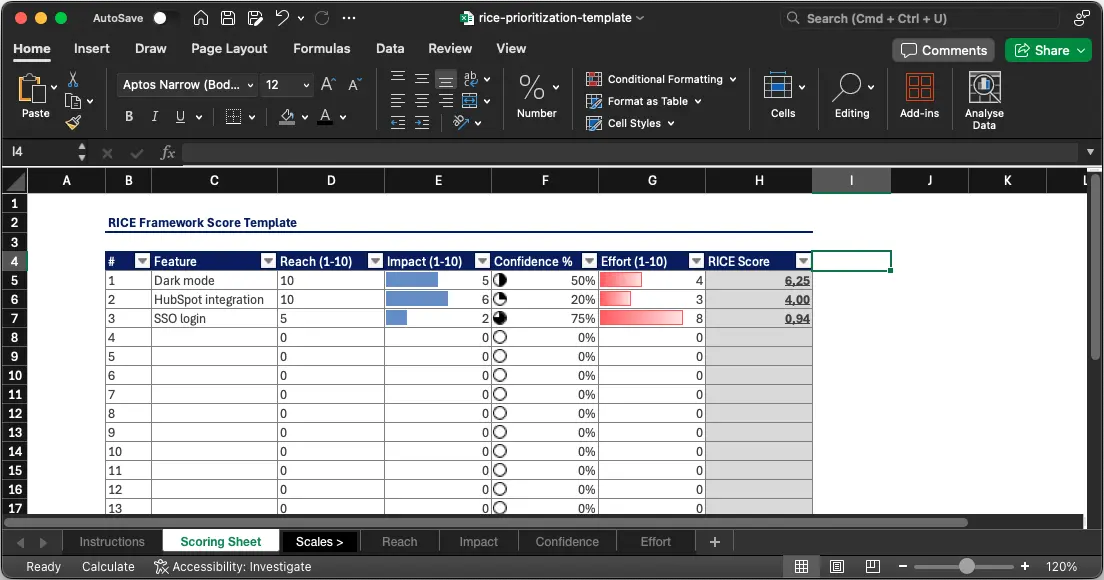
👉 Download the RICE Excel template
Worked Example: One Feature Scored End to End
Before opening Excel, here is exactly what a RICE calculation looks like on a real feature. This is the template already filled in for a single row so you can sanity check the formula.
Feature: Add SSO login for enterprise plans.
- Reach = 5,000 users affected per quarter
- Impact = 3 (massive, unblocks the enterprise buyer)
- Confidence = 0.8 (80%, based on sales pipeline signal)
- Effort = 2 person months
RICE score = (5000 × 3 × 0.8) / 2 = 6,000
Sort your backlog by this column descending and the feature with the highest number is the one to build next. Use this same pattern for every row.
Quick Answers (FAQ)
What is a RICE template?
A RICE template is a prioritization spreadsheet with four scoring columns (Reach, Impact, Confidence, Effort) and one calculated column that multiplies Reach × Impact × Confidence and divides by Effort. Sort by the calculated column to see which feature to build next.
How do you calculate RICE score in Excel?
Enter your four inputs in columns B (Reach), C (Impact), D (Confidence as a decimal), and E (Effort). In the RICE Score column (F), type =B2*C2*D2/E2 and drag it down. Excel recalculates every score instantly.
What is a good RICE score?
There is no universal cutoff. RICE scores are only meaningful relative to your own backlog. Rank features against each other and pick the highest scoring items that fit your capacity. A score of 6,000 might be top of the list in one backlog and middle of the pack in another.
Who invented the RICE framework?
RICE was introduced by Sean McBride on the Intercom blog in January 2018 as the scoring system Intercom's product team was using internally. It has since become one of the most widely adopted lightweight prioritization frameworks.
What is RICE Prioritization?
RICE is a prioritization framework that stands for Reach, Impact, Confidence, and Effort. Product teams use it to compare features, initiatives, and ideas on a level playing field so that the highest value work rises to the top. Each factor captures a different dimension of the decision, and the final score combines them into a single number you can sort by.
For a complete walkthrough with real world examples, check out our RICE Prioritization Guide.
RICE Score Formula in Excel
The RICE score formula used in this Excel template is:
RICE Score = (Reach × Impact × Confidence) / Effort
Here is what each variable means and how it maps to cells in the spreadsheet:
- Reach: The number of users or customers who will be affected in a given time period (for example, per quarter). Enter this as a whole number in column B.
- Impact: A score that estimates how much the feature moves the needle for each person reached. The standard scale runs from 0.25 (minimal) to 3 (massive). Enter this in column C.
- Confidence: A percentage that reflects how sure you are about your estimates. 100% means high confidence, 80% is medium, and 50% is low. Enter this in column D as a decimal (0.5, 0.8, or 1.0).
- Effort: The number of "person months" (or person weeks, depending on your preference) required to ship the feature. Enter this in column E.
If your feature row starts on row 2, the formula in the RICE Score column (F2) looks like this:
That single formula multiplies Reach, Impact, and Confidence together, then divides by Effort. Copy it down for every row, and Excel recalculates each score instantly.
Want to skip the spreadsheet entirely? Try the online RICE Calculator for quick one off calculations.
Step by Step Setup Guide
Follow these steps to build the template from scratch or customize the one you downloaded.
1. Create column headers
Set up row 1 with the following headers:
| A | B | C | D | E | F |
|---|---|---|---|---|---|
| Feature | Reach | Impact | Confidence | Effort | RICE Score |
2. Format the columns
- Column A (Feature): Plain text. Make it wide enough for descriptive names.
- Column B (Reach): Number format with no decimals. This keeps values clean.
- Column C (Impact): Number format with two decimals. Accepted values are 0.25, 0.5, 1, 2, or 3.
- Column D (Confidence): Percentage format, or number format with two decimals if you prefer entering 0.5 instead of 50%.
- Column E (Effort): Number format with one decimal. Never enter zero here (more on that below).
- Column F (RICE Score): Number format with one decimal. This is your calculated output column.
3. Enter the formula
In cell F2, type =B2*C2*D2/E2 and press Enter. Then select F2, grab the fill handle in the bottom right corner, and drag it down to cover all your rows.
4. Add sample data
Enter three or four features with realistic numbers so you can verify the formula works before filling in the rest of your backlog.
5. Sort by RICE Score
Select the entire data range, go to Data > Sort, and sort column F from largest to smallest. The feature with the highest score is your top priority.
Advanced Excel Features
Once the basics are in place, these enhancements make the template significantly more useful.
Conditional formatting for top priorities
Highlight the RICE Score column, go to Home > Conditional Formatting > Color Scales, and pick a three color scale (green for high, yellow for medium, red for low). This gives you an instant visual ranking so the winning features stand out at a glance.
You can also add a rule that bolds any row where the RICE Score exceeds a threshold you define. For example, select the entire data range, choose "New Rule" > "Use a formula," and enter =$F2>500. Set the format to bold with a light green fill.
Data validation dropdowns for Impact and Confidence
Instead of letting anyone type arbitrary numbers, lock Impact and Confidence to their standard scales.
For Impact (column C): select the cells, go to Data > Validation, choose "List," and enter 0.25,0.5,1,2,3. Now users pick from a dropdown, eliminating guesswork and typos.
For Confidence (column D): do the same with a list of 0.5,0.8,1. These correspond to low, medium, and high confidence.
Auto sorting with a helper column
If you want the sheet to stay sorted without manually re sorting, add a helper column that uses RANK:
This gives each feature a rank number. You can then sort by that column, or use conditional formatting to highlight the top 5 items.
Freeze panes
Select cell A2 and go to View > Freeze Panes > Freeze Top Row. This keeps your headers visible as you scroll through a long backlog.
Common Formula Mistakes
Even a simple formula can produce wrong results if you are not careful. Watch out for these pitfalls:
Forgetting to use decimals for Confidence. If you enter 80 instead of 0.8, your RICE score will be 100 times too high. Either format the column as a percentage or add a note reminding users to enter values between 0 and 1.
Dividing by zero in the Effort column. Leaving Effort blank or entering 0 causes a #DIV/0! error. To handle this gracefully, wrap your formula in an IFERROR function:
This returns 0 instead of an error when Effort is missing.
Wrong cell references after copying. If you copy the formula from one sheet to another, Excel may adjust the references. Always double check that each row's formula points to the correct cells. Using the F2 (Edit) key to step into a formula helps you see which cells it references.
Mixing up absolute and relative references. The RICE formula should use relative references (B2, C2, etc.) so it shifts row by row when you drag it down. If you accidentally add dollar signs ($B$2), every row will calculate the same score.
Using inconsistent scales. If one team member scores Impact on a 1 to 5 scale while another uses the standard 0.25 to 3 scale, scores become meaningless. Document your scales in a "Legend" sheet or use the data validation dropdowns described above.
When Excel is the Right Choice
Excel is a solid choice for RICE scoring when:
- You need offline access. Unlike cloud tools, Excel works without an internet connection. This is useful for teams that work in environments with restricted connectivity.
- Your team already knows the interface. Everyone has used Excel. There is no onboarding curve, no new tool to learn.
- You want full control with macros. VBA macros let you automate scoring workflows, generate summary reports, or build custom dashboards. This flexibility is hard to match in simpler tools.
- You need to integrate with existing spreadsheets. If your roadmap, budget, or resource plan already lives in Excel, keeping RICE scoring in the same format means fewer exports and imports.
If your team prefers working in a browser, the Google Sheets version offers the same template with real time collaboration built in.
Prefer a different format? Google Sheets version | PowerPoint version
Looking for a Long Term Solution?
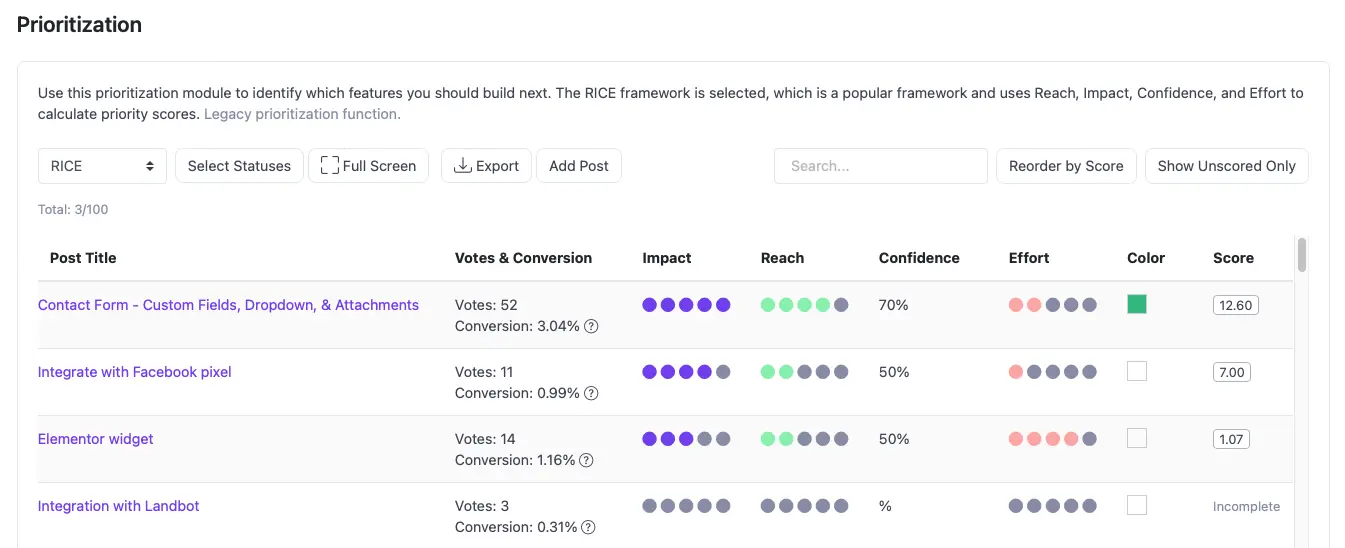
This Excel template works for a scoring session. It becomes harder to maintain when requests, customer evidence, and roadmap status live in different files. ProductLift's RICE prioritization feature keeps those parts together:
- Live Requests: Keep RICE fields attached to the original feature request
- Customer Evidence: Review votes, comments, segments, MRR, and LTV while scoring
- Roadmap Workflow: Move selected requests to the roadmap without copying rows between files
- Voter Updates: Notify voters when a request changes status or ships
RICE Calculator Tool
For quick calculations without downloading the Excel file, try the online RICE Calculator. Enter your four values and get an instant score. It is especially handy when you need to score a single feature during a meeting or discussion.
Whether you choose Excel, Google Sheets, PowerPoint, or another format, our RICE templates hub has every version covered. And if you are looking for a solution that grows with your team and product, ProductLift offers the tools you need for long term success.
Move beyond the spreadsheet: Start a 14-day ProductLift trial when your scores need to stay connected to customers and roadmap delivery. No credit card is required.
Learn More About Prioritization
- RICE Prioritization Guide: How RICE works with examples
- RICE vs ICE: Decide whether your backlog needs Reach or a faster three-factor score
- All 10 Prioritization Frameworks: Compare RICE, ICE, MoSCoW and more
- Framework Comparison: RICE vs ICE vs MoSCoW side by side
- Feature Prioritization Tool: Keep RICE scores attached to live requests and voter context
Last updated on Oct 3, 2026